
Know what to play before the count-in.
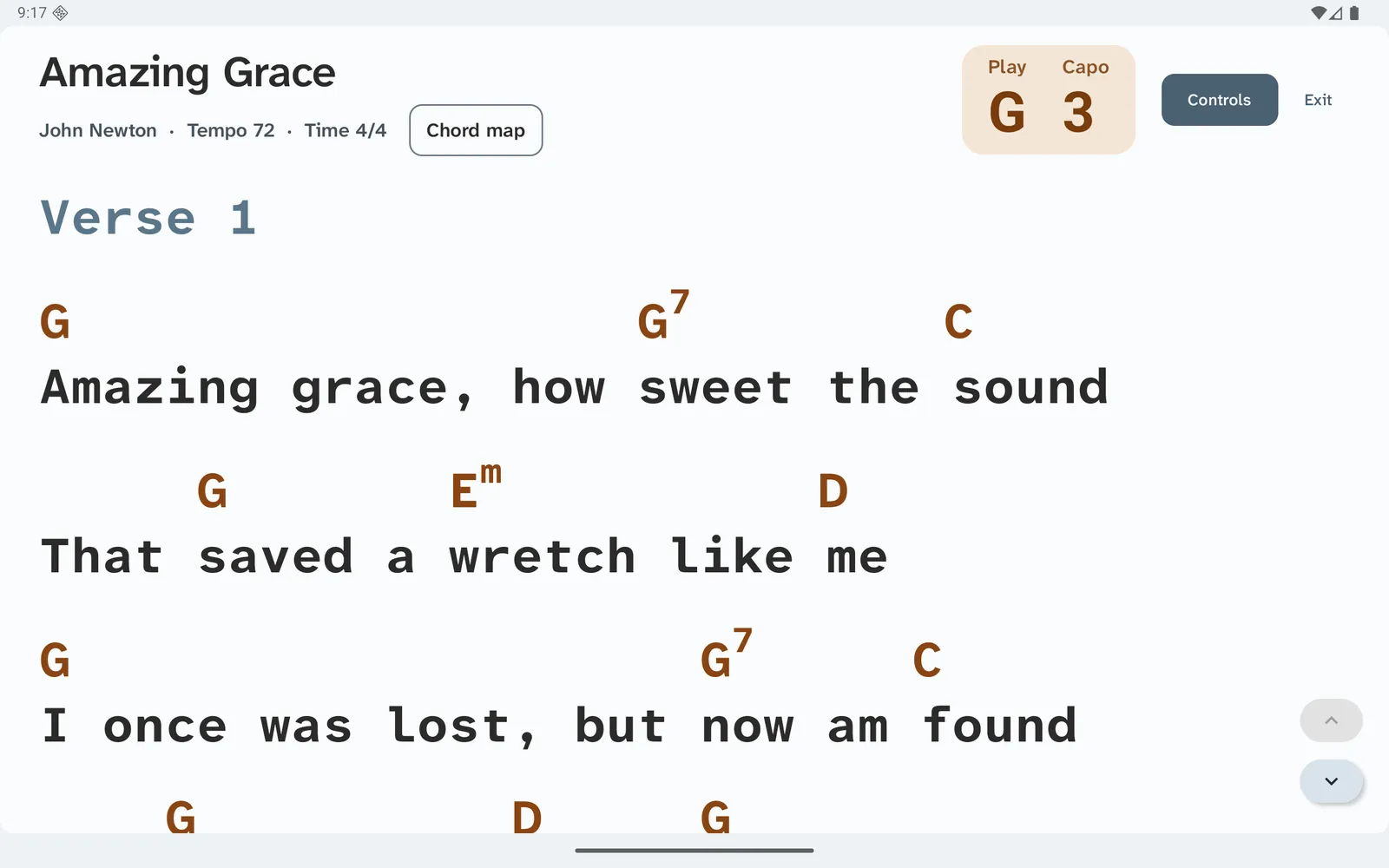
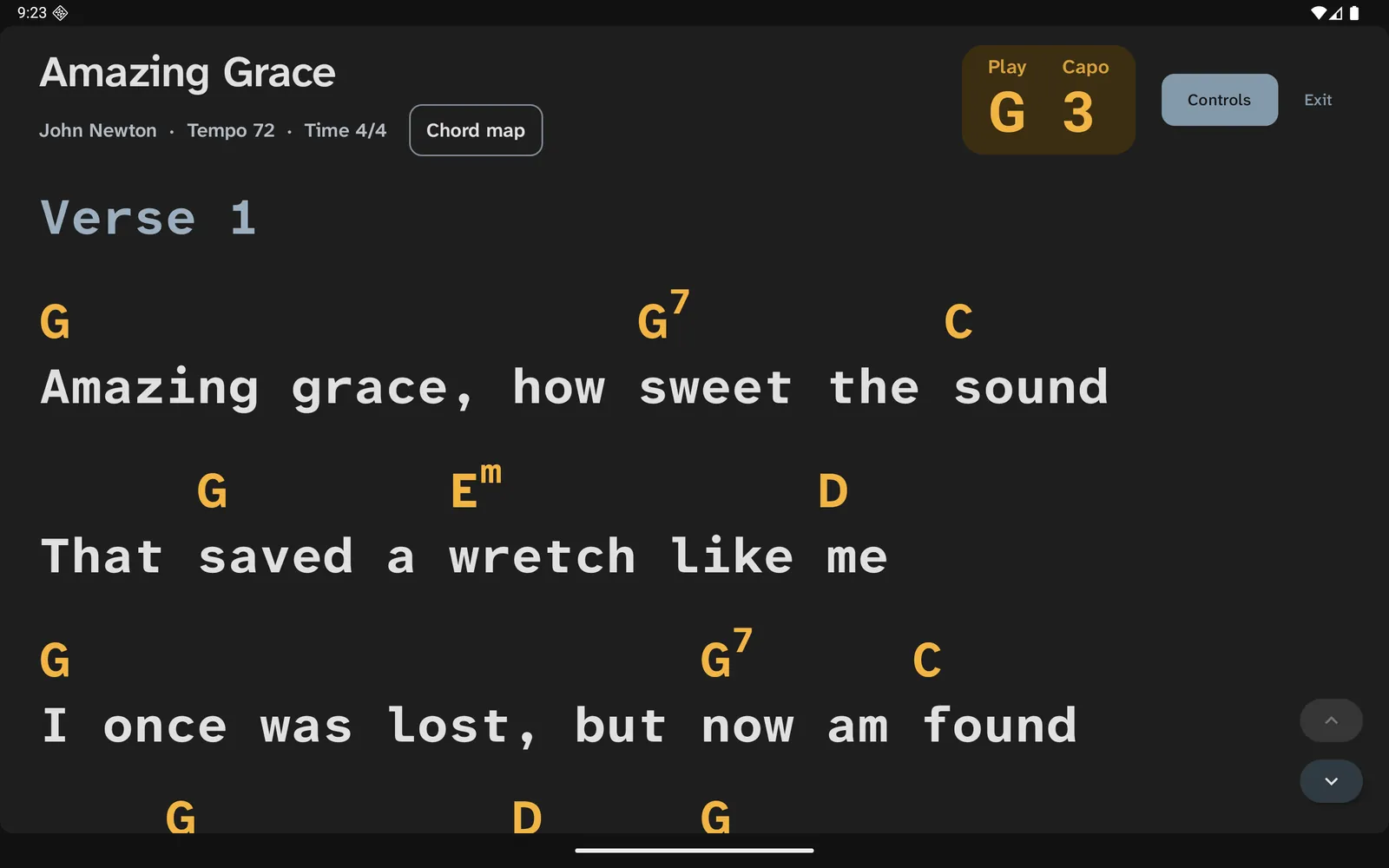
Chorder is a chord-chart and setlist app for Android tablets. Every song opens with the key and capo to play, and the chart scales to fill the screen.
- Android 8.0 and newer
- No account
- No ads or analytics
Bring your charts in, then find them fast.
Every import opens in a review step before it is saved, and every saved chart is editable.
- PDF files. Pick one or more. Text PDFs are read directly; scans use on-device text recognition.
- Planning Center Services. Import from your Services library.
- A web page. Paste a public page with lyrics or chords.
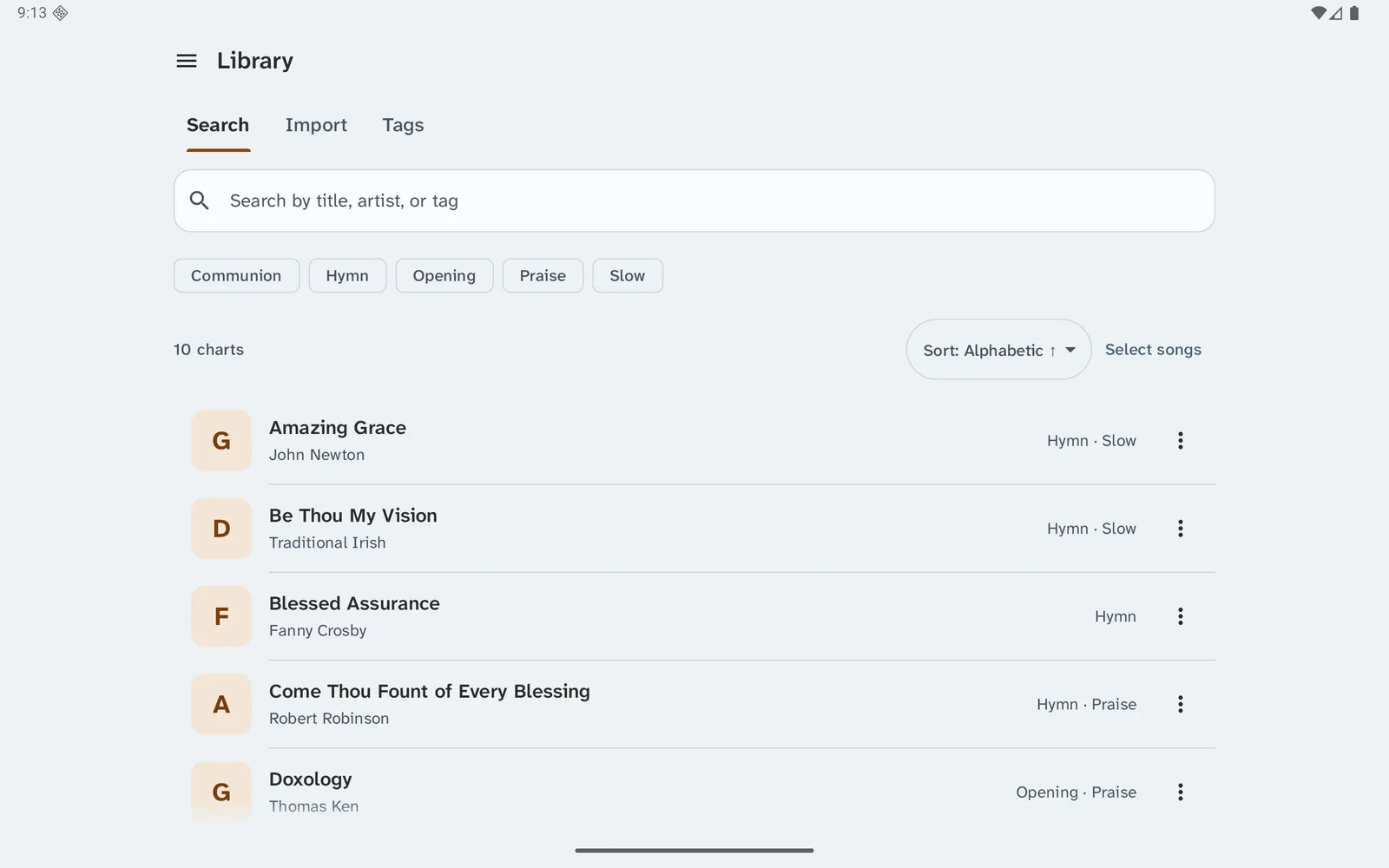
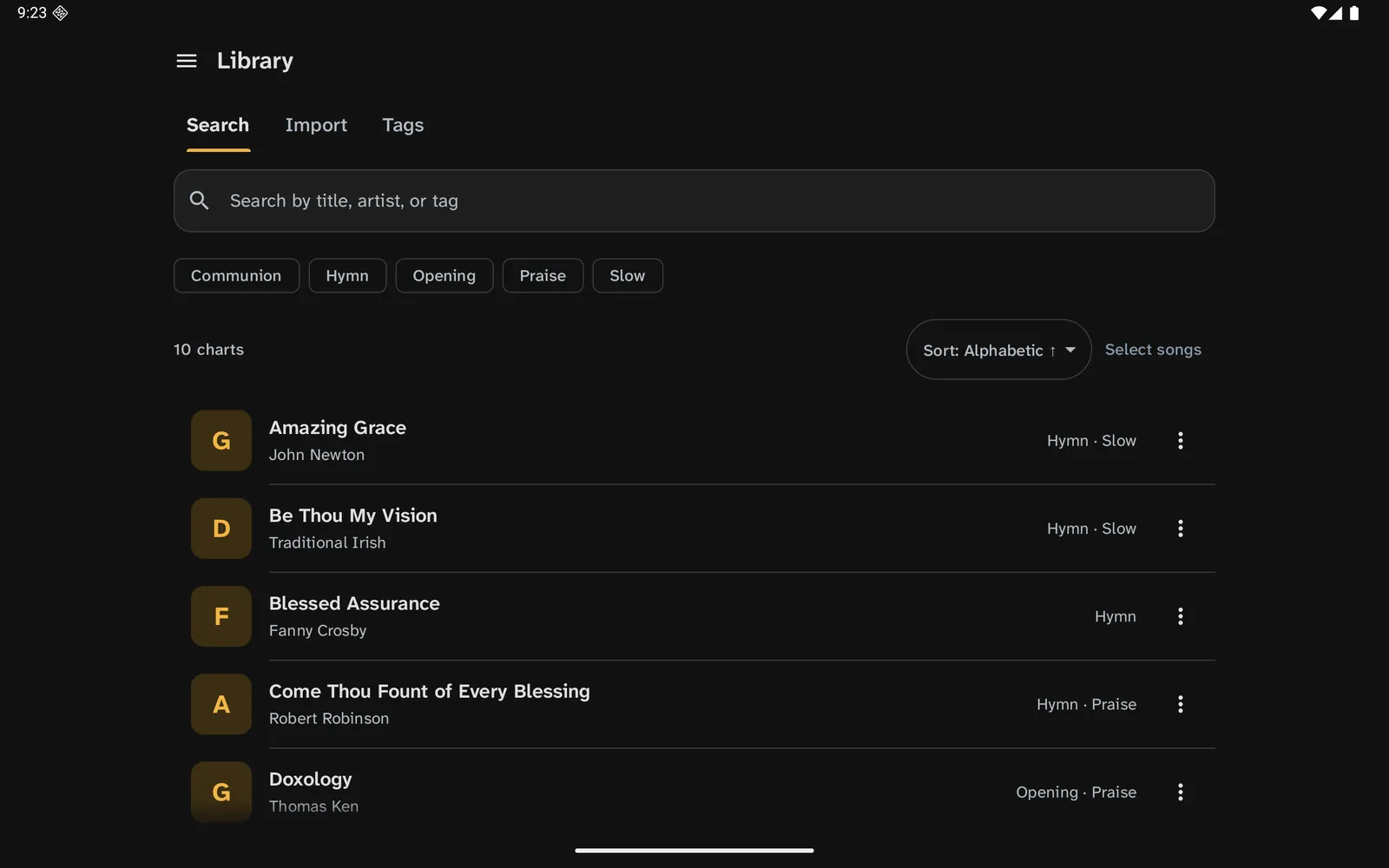
Search the Library by title, artist or tag, filter by tag chips, and sort. Each row leads with the song’s key.
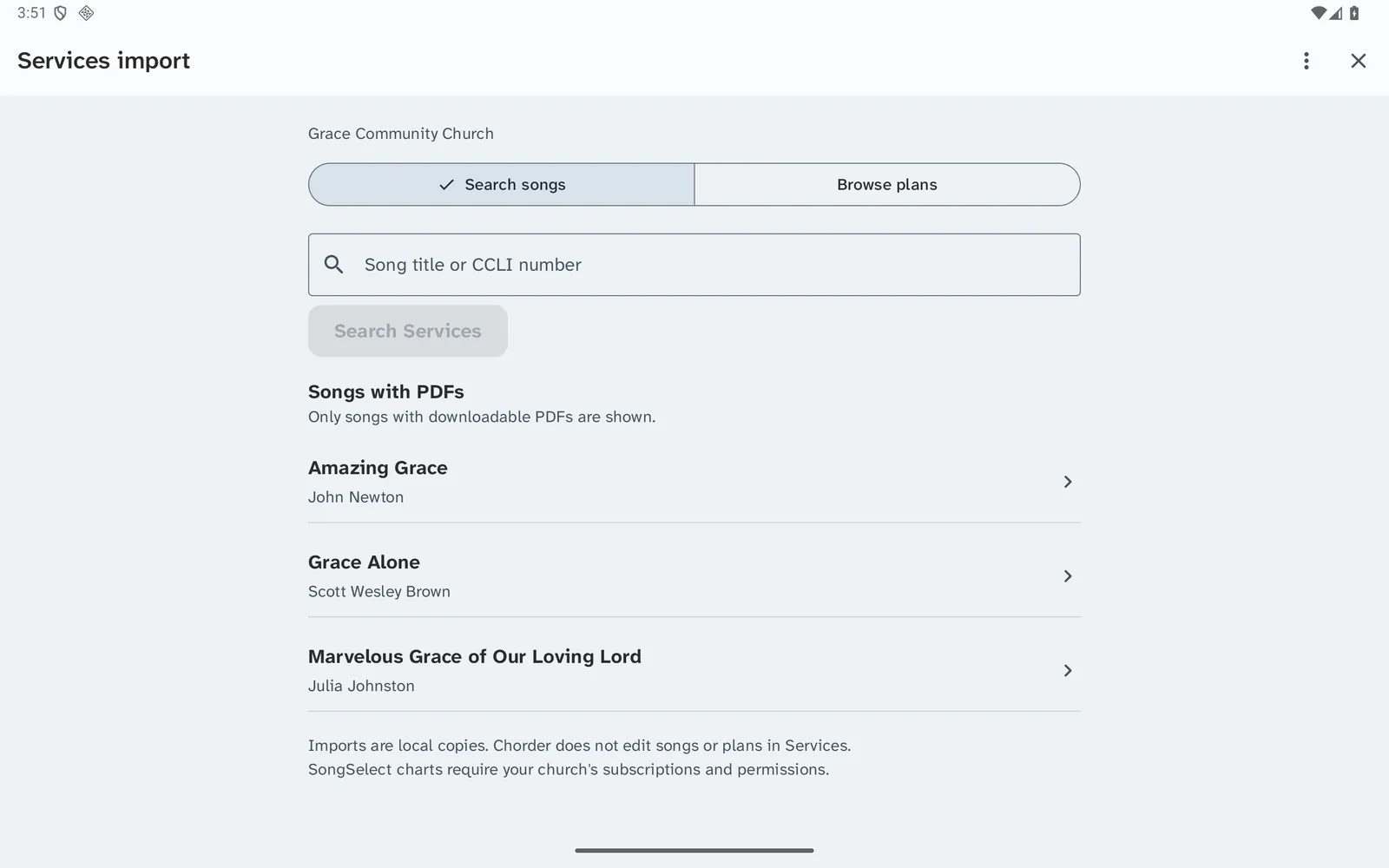
Pull a whole plan from Planning Center.
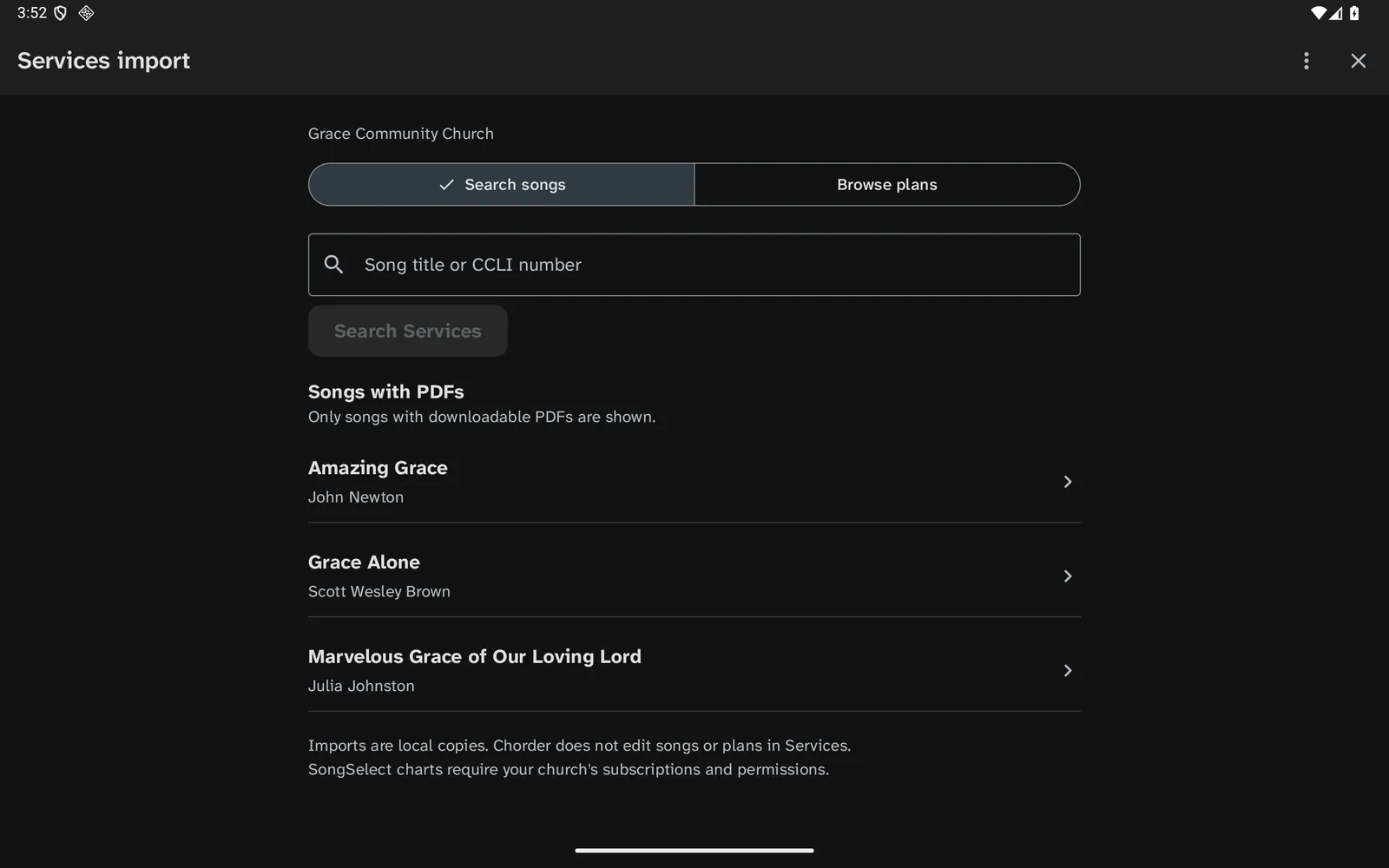
Connect your account, search by title or CCLI number, or browse a plan to see its songs in service order.
- Only songs with downloadable PDFs are listed. Plans use the assigned arrangement and key.
- Import all saves a plan’s PDF charts, and asks Overwrite, Create copy or Skip for songs you already have.
- Imports are local copies. Chorder does not edit songs or plans in Services, and your church’s subscriptions and permissions still apply.
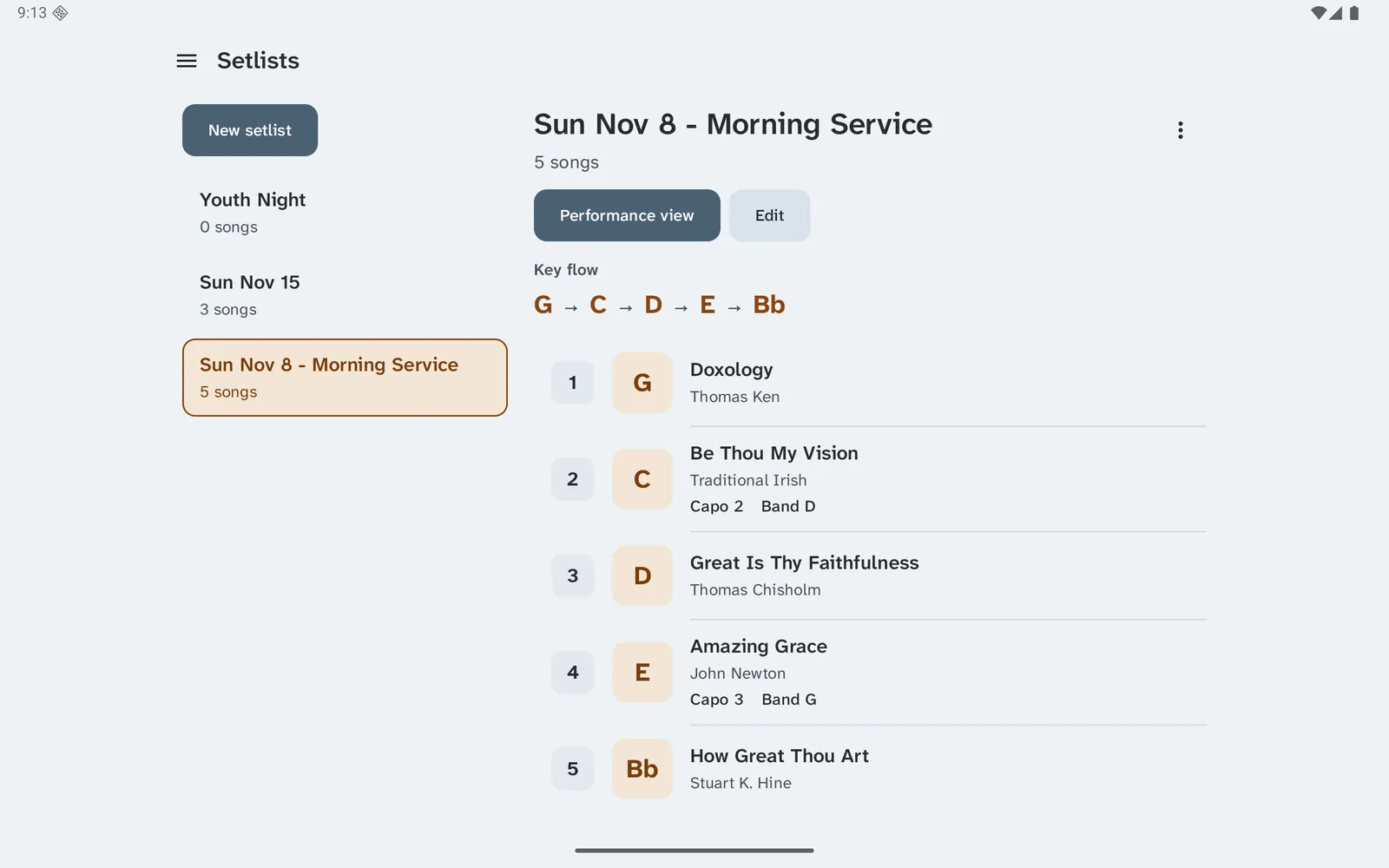
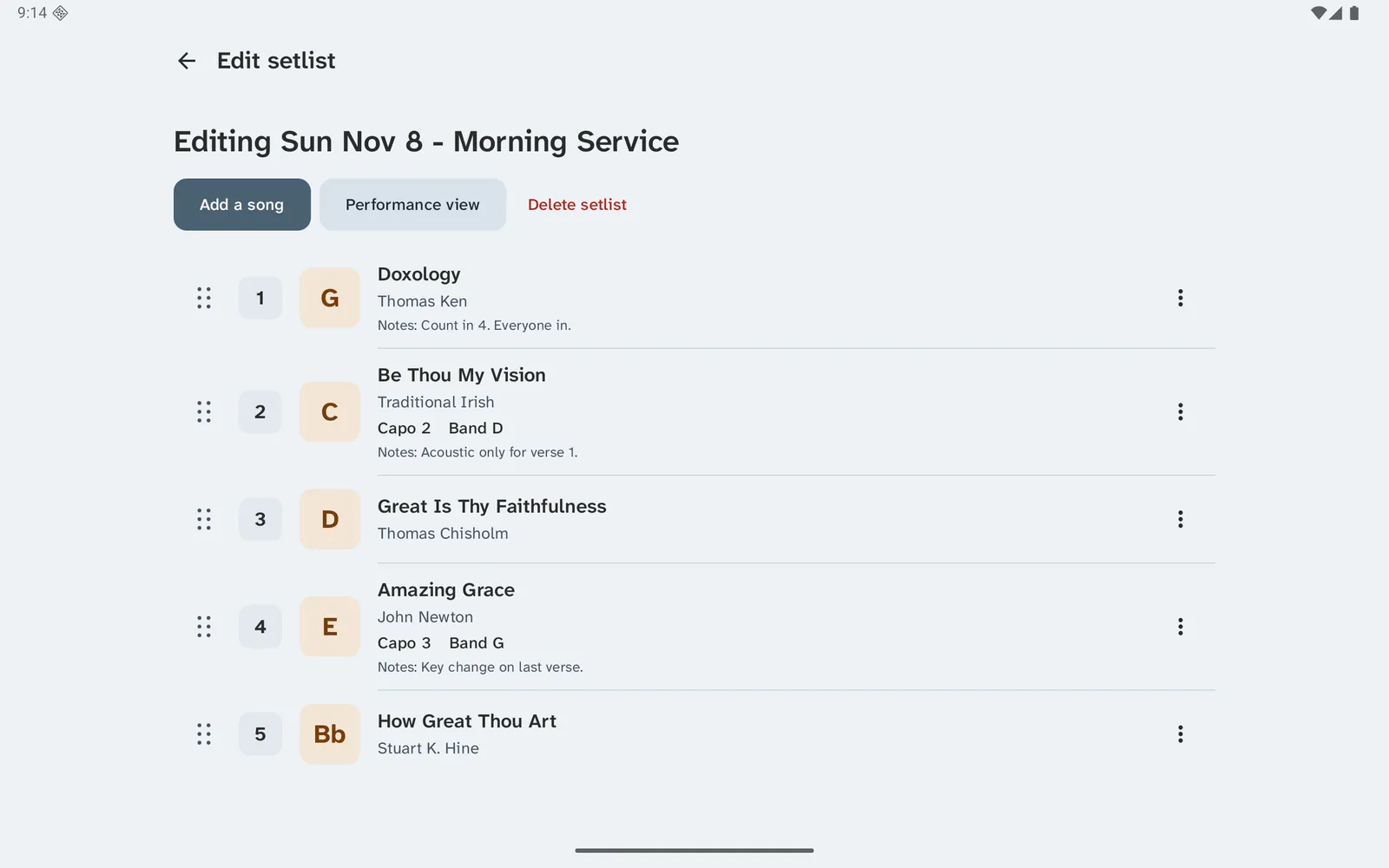
Build the set and see its keys at a glance.
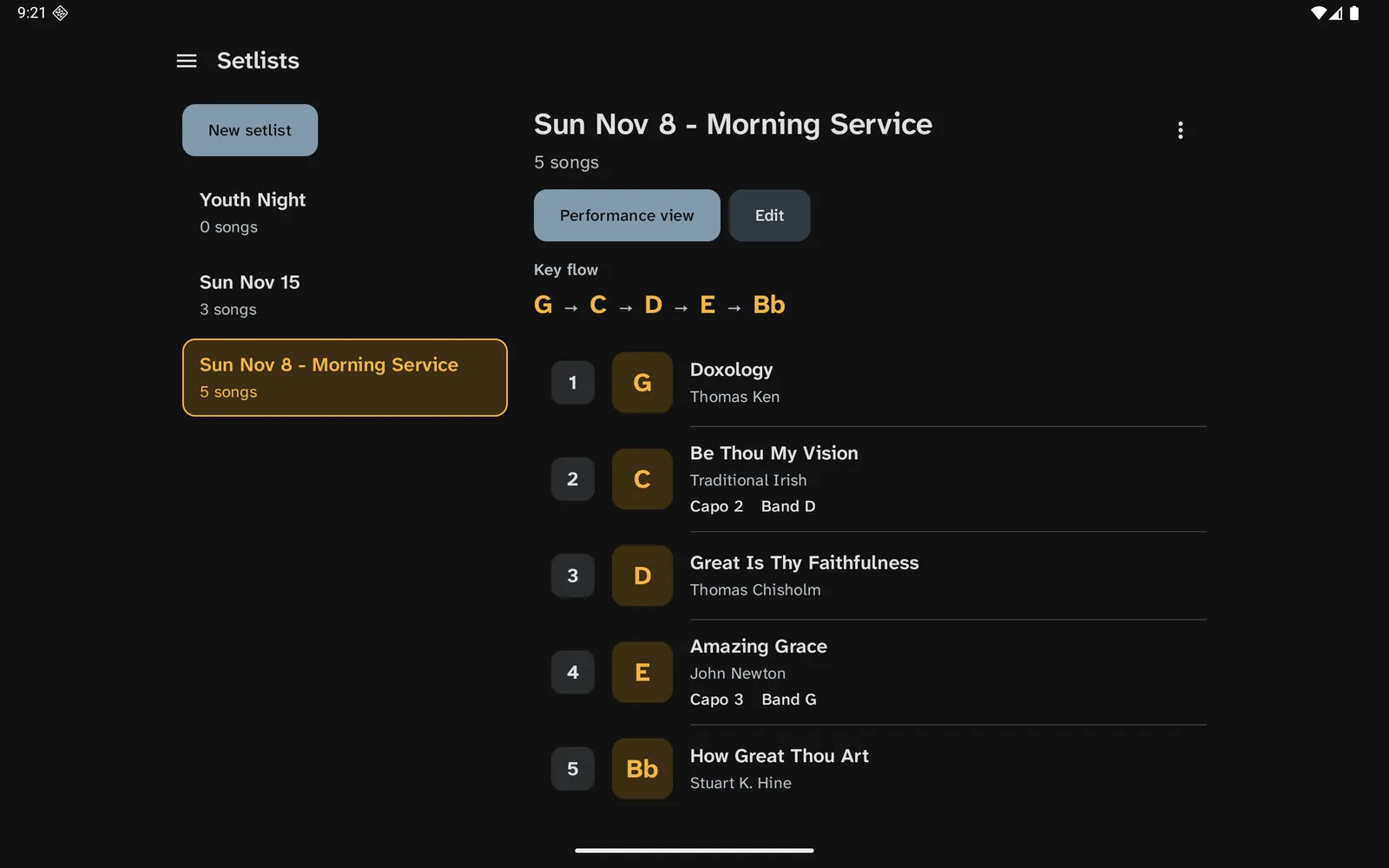
Add songs from the Library, then set each song’s key and capo. The setlist shows the key flow along the top.
- Reorder with the drag handle, or use Move up and Move down from the row menu.
- Notes stay with the song in that setlist, such as “Count in 4. Everyone in.”
- Create a setlist from selected Library songs, in the order you picked them.
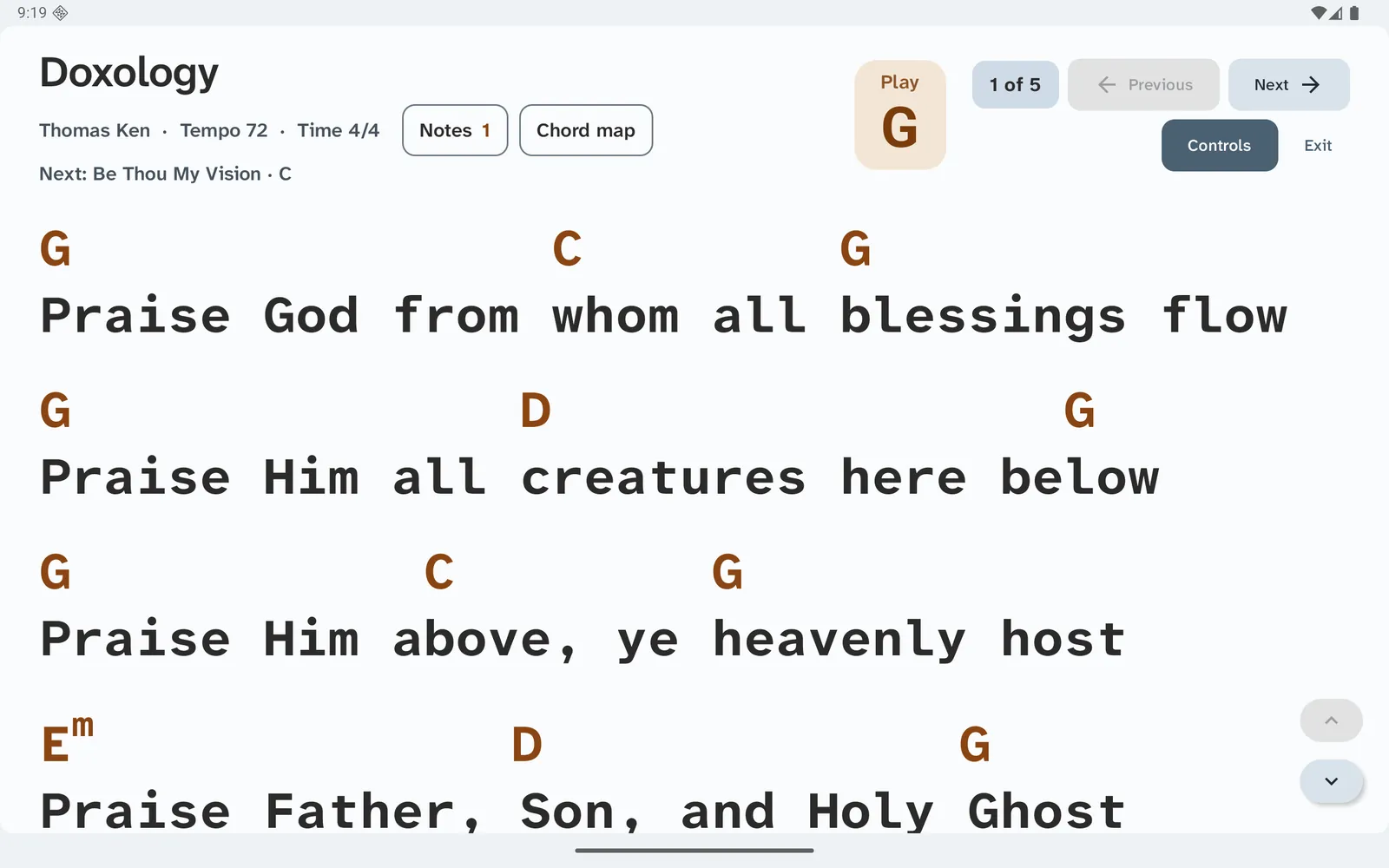
Play it. One header band, one thing to read first.
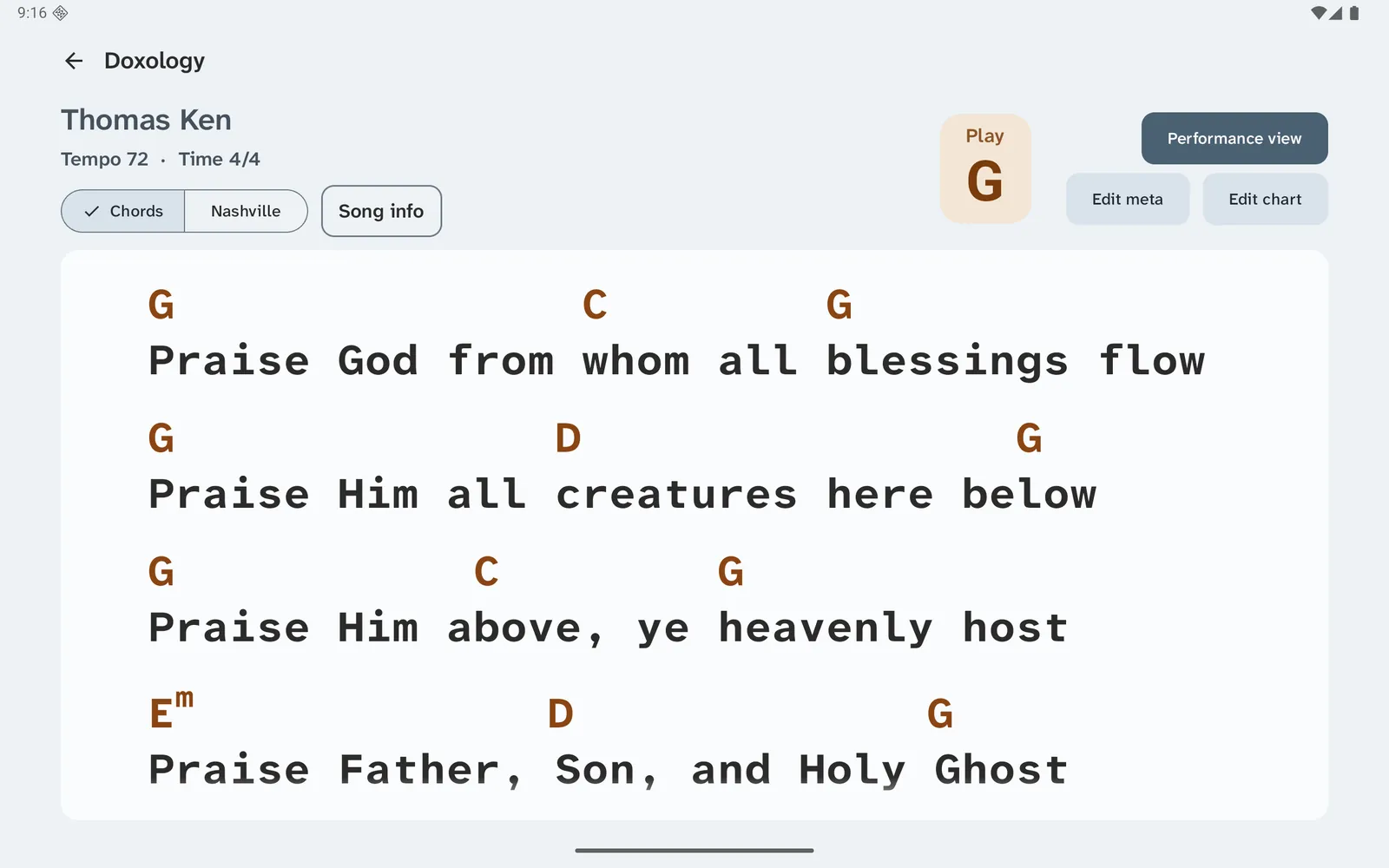
Performance view opens each song with the key and capo to play, then your chart, scaled to fill the screen.
- The header shows the title, your position in the set (“1 of 5”) and what is next.
- Previous and Next step through the set. Notes and Chord map open from the header.
- The screen stays awake while you are in Performance view.
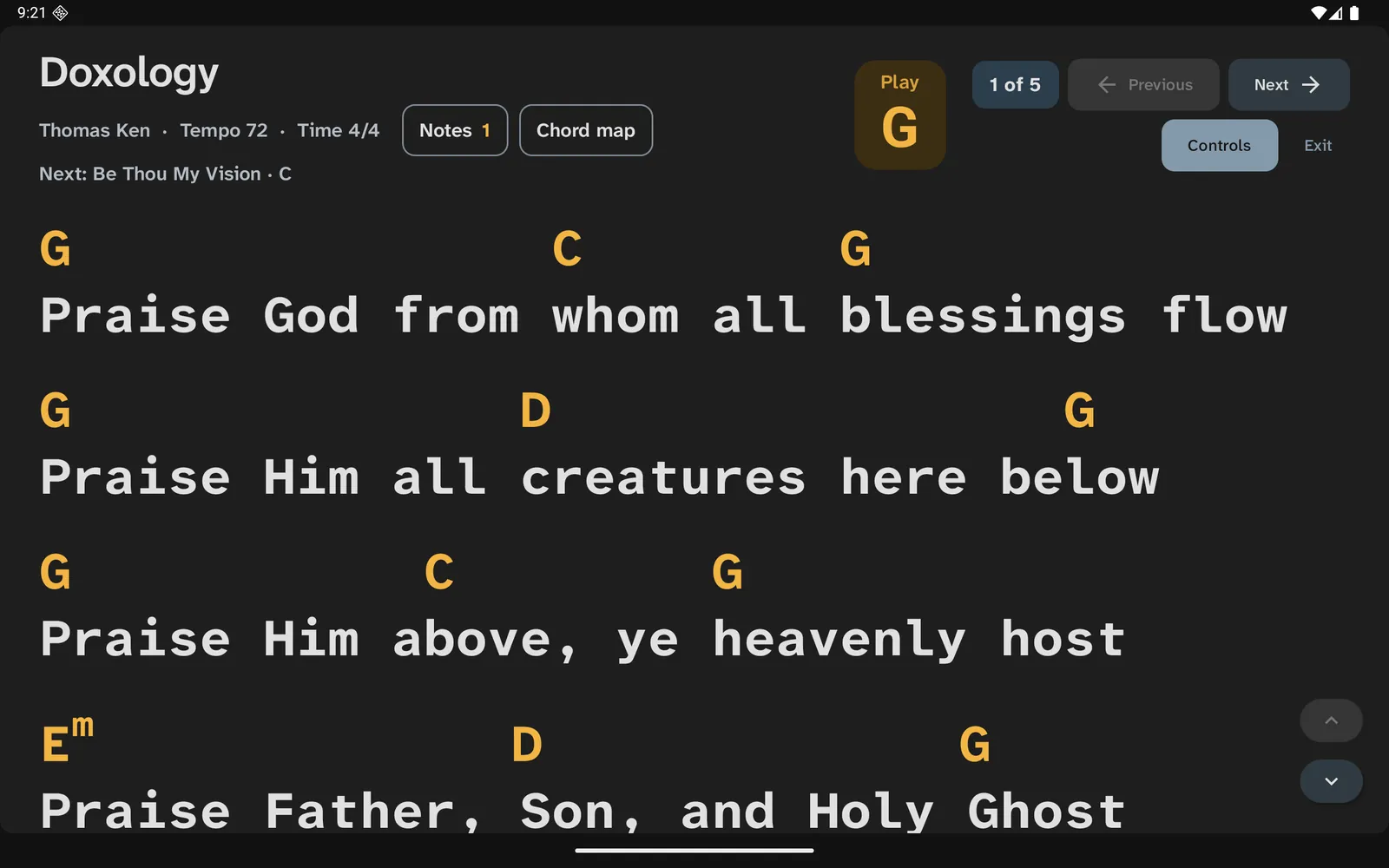
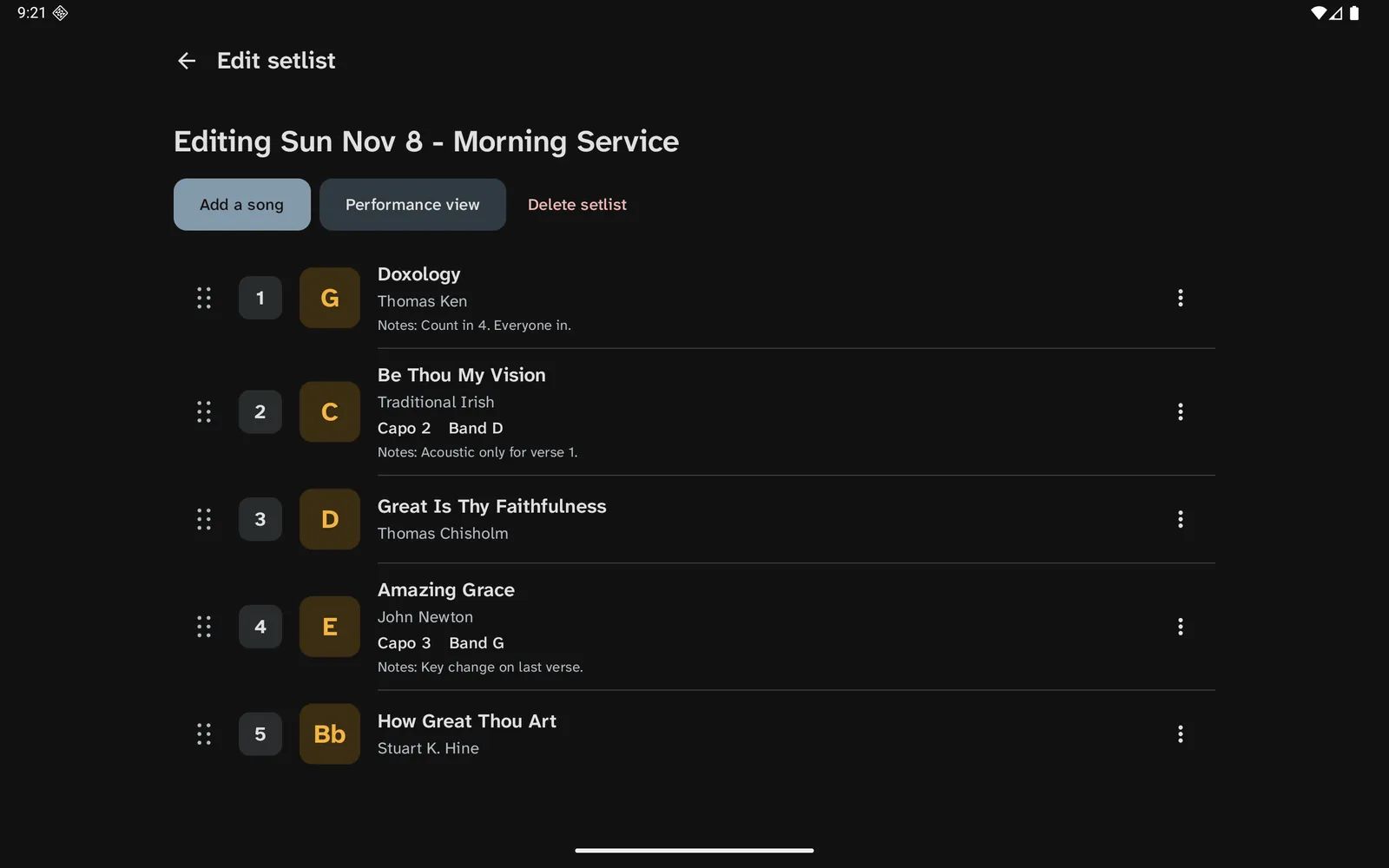
Light for the rehearsal room. Dark for the stage.
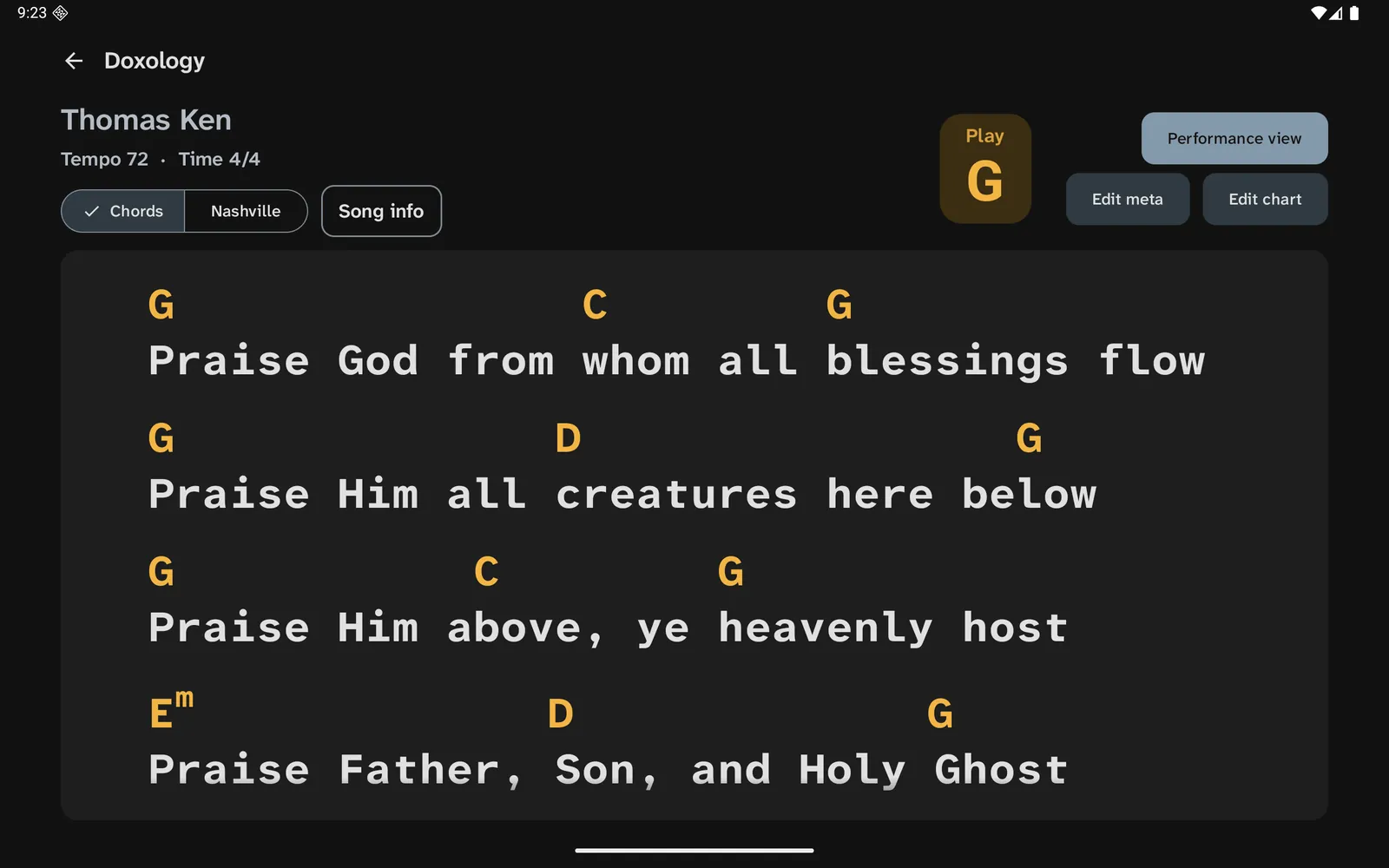
Charts keep chords in brass and lyrics in large, even type in both themes. The screenshots on this page follow the theme switch in the header.
Also in the app
-
Chords or Nashville numbers
Switch a chart between chord names and Nashville numbers. In Performance view, a Chord map reference opens from the header.
-
Key and capo per song
Set a band key and a capo for each song in a setlist. The Play block shows the key to play and the capo, and the chart follows.
-
Edit any chart
Drag a chord along the lyric, long-press to change it, long-press a gap to add one, and mark section headings. Show the original PDF under the editable chart.
-
Planning Center Services
Connect your account, search by title or CCLI number or browse a plan, and import its PDF charts. Imports are local copies; Chorder never edits Services. Your church’s subscriptions and permissions still apply.
-
Chord detection (experimental)
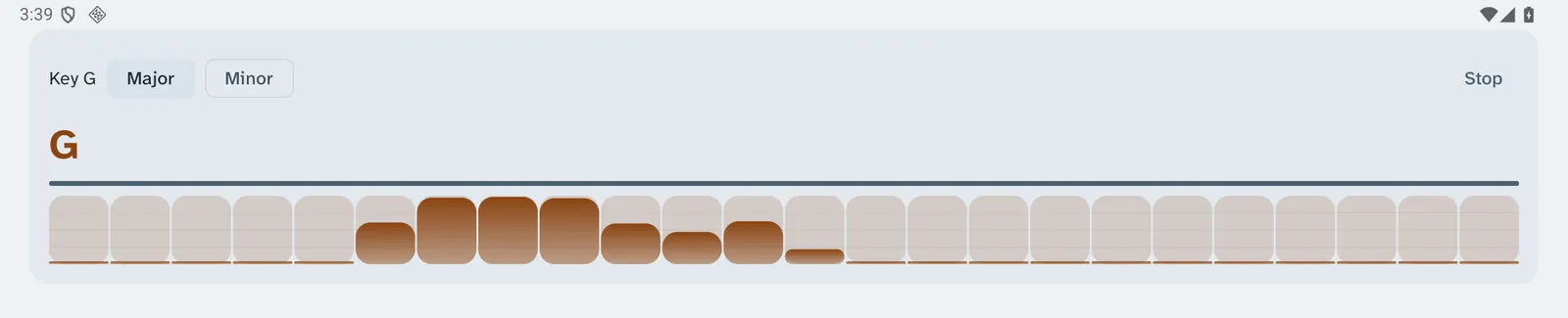
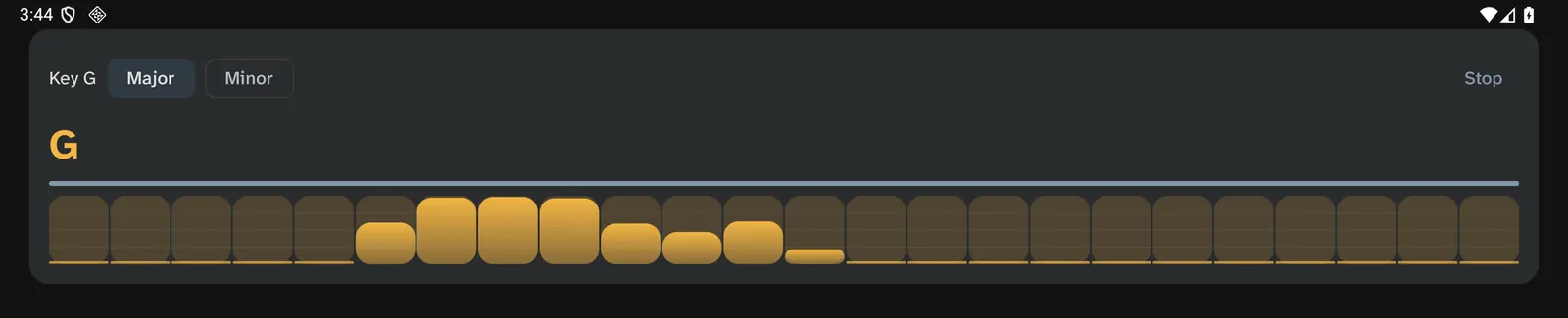
Listens through the microphone and shows the chord it hears, with a spectrum. Audio is processed on the device and never recorded or uploaded.
-
Backup and restore
Export your charts, notes, annotations, setlists and tags to a JSON file. Restore by adding copies, skipping existing songs, or replacing the library. Original PDFs and settings are not included, and the file is not encrypted.
-
Light and dark themes
Built-in light and dark themes, plus a theme editor. Text is set in Atkinson Hyperlegible, with 48dp touch targets.
-
Screen-reader semantics
The Play key is read first, song rows speak as one phrase, and the drag handle has Move up and Move down actions.
Your library stays on your device.
There is no account, no advertising and no analytics. Charts, setlists and notes are stored on the tablet.
- Microphone audio for chord detection is processed on the device and is never recorded or uploaded.
- Importing from Planning Center or a web page needs an internet connection.
- Backups are a file you export yourself. Chorder does not sync.
- Read the full privacy policy.
Questions
What devices does Chorder run on?
Android 8.0 (Oreo) or newer. It is designed for tablets on a music stand, so the layouts are built around a large screen.
Where do my charts come from?
You import them. Pick one or more PDF charts, pull songs from Planning Center Services, or paste a public web page with lyrics or chords. Each import opens in a review step before it is saved. Scanned PDFs are read with on-device text recognition.
Can I edit a chart after I import it?
Yes. Every chart is editable. Drag chords along the lyric, change or add chords, mark section headings, and edit the name, author, key, tempo, time signature and tags.
Can I transpose songs and use a capo?
Yes. In a setlist, each song has its own target key and capo, and the Play block shows the key to play. A chart can be shown with chord names or Nashville numbers.
Does it work without an internet connection?
Your library, setlists and Performance view are stored on the device and work offline, with no account. The internet is used when you import from Planning Center or from a web page.
How do I back up my library?
Export a backup from Settings. It is a JSON file with your charts, notes, annotations, setlists and tags. Original PDFs and settings are not included, and the file is not encrypted.
How much does Chorder cost?
The Google Play listing shows the current price. Chorder has no account, advertising or analytics.
What about my privacy?
There is no account, advertising or analytics. Microphone audio used for chord detection, which is experimental, is processed on the device and is never recorded or uploaded. The privacy policy has the details.
Get Chorder on Google Play.
For Android 8.0 and newer, built for tablets. No account to create. See the privacy policy for what the app does with your data.